
RP
Management and costing
Reports
Summarise labour time by Job, Task or department, with grouped totals and daily employee detail in PDF or Excel.
Inside the workspace
See Reports in use.
Real EasyClock screens with demonstration data. Open a screenshot to see the interface at full size.
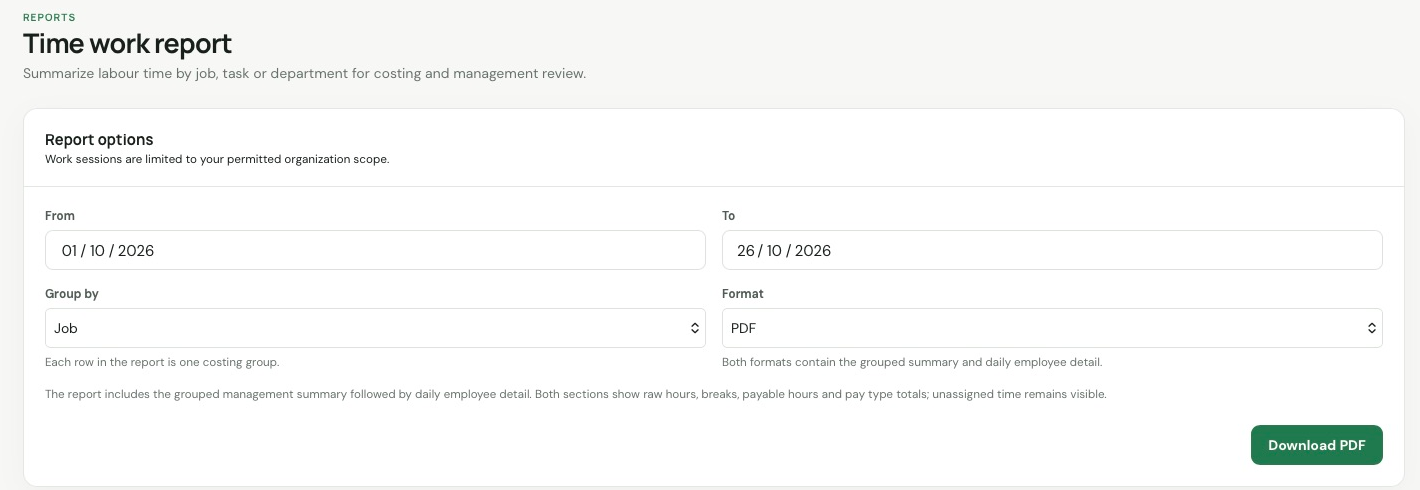 View full size ↗
Build a time work report
Choose a date range, a Job, Task or department grouping, and PDF or Excel output for management and costing review.
Step by step
Try this workflow.
Select the reporting dates
Set From and To for the work sessions you want to summarise.
Choose the costing group
Group by Job, Task or department to match the question you need the report to answer.
Choose PDF or Excel
Use PDF for a readable report or Excel when the grouped totals and daily detail need further analysis.
Review the downloaded report
Check raw hours, breaks, payable hours and Pay Type totals, including time without an assigned costing group.
Report options
- Select the From and To dates for the work sessions.
- Group the result by Job, Task or department.
- Choose PDF or Excel (.xlsx), then download the report.
Included information
- The grouped management summary is followed by daily employee detail.
- Review raw hours, breaks, payable hours and Pay Type totals.
- Time without an assigned costing group remains visible.
Related reporting
- Use the Timesheet report action on Timesheets for an employee timesheet PDF.
- Use Payroll exports when preparing a file for the receiving payroll system.
- Reported work sessions follow the signed-in user’s permitted organisation scope.