TA
Pro feature
Tasks
Create reusable work activities that can be linked to one or more Jobs and selected during punching.
Inside the workspace
See Tasks in use.
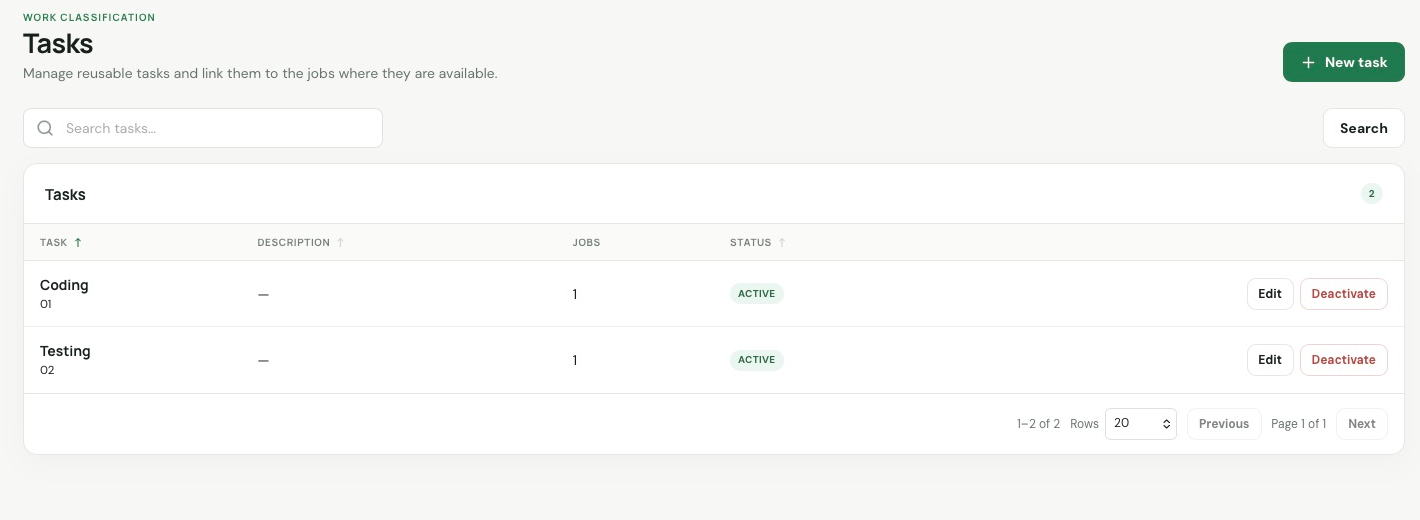
Real EasyClock screens with demonstration data. Open a screenshot to see the interface at full size.
 View full size ↗
Reuse work activities across Jobs
The Task list shows codes, descriptions, linked Job counts and active status so activities can be maintained consistently.
Step by step
Try this workflow.
Define a reusable activity
Create a Task code and name for work such as coding, testing, packing or on-site service.
Connect it to Jobs
Link the Task to each Job where the activity should be available.
Use it during work selection
Employees choose a valid Job and Task when the company’s work-allocation features apply.
Retire it when needed
Deactivate a Task that should no longer appear in new work selection while retaining its historical context.
Task library
- Maintain a code, name, description and Active or Inactive status.
- Reuse the same activity across multiple Jobs.
- Inactive Tasks remain historical but disappear from new work selection.
Clock-in behaviour
- When Job and Task features are enabled, EasyClock loads valid choices before showing the punch confirmation.
- The selected values are recorded on the attendance event and work session.
- Tasks are a Pro feature and require the company switch.