Personal settings
My profile
Manage your profile, password, authenticator app and passkeys from the same EasyClock account on the web and in the iPhone app.
Inside the workspace
See My profile in use.
Real EasyClock screens with demonstration data. Open a screenshot to see the interface at full size.
 View full size ↗
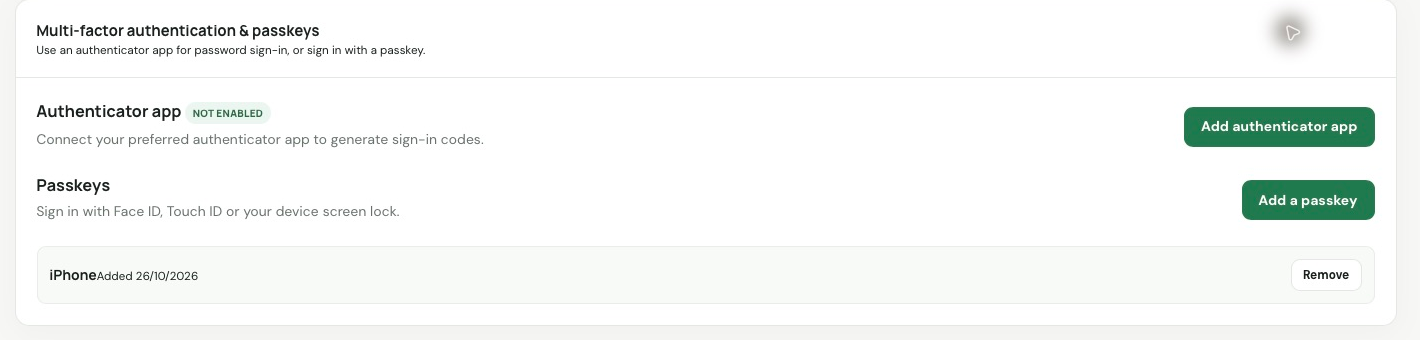
Manage MFA and passkeys in My profile
The security panel shows authenticator status, the passkey action and registered passkeys, without displaying account contact details.
 View full size ↗
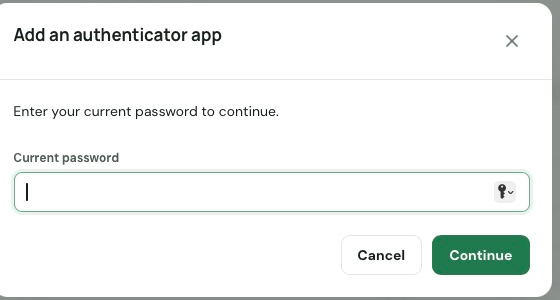
Verify before connecting an authenticator
Add authenticator app first asks for the current password. After verification, scan the QR code or use the setup key and confirm a six-digit code.
 View full size ↗
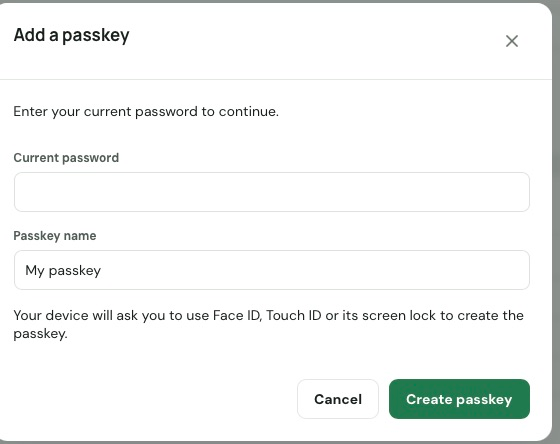
Give the passkey a useful name
The passkey dialog requests the current password and a device name, then hands over to the device’s Face ID, Touch ID or screen-lock prompt.
Step by step
Try this workflow.
Open your security settings
Find Multi-factor authentication & passkeys in My profile on the web, or the corresponding security sections in the iPhone app.
Connect an authenticator app
Verify your current password, scan the QR code or use the manual key, then confirm a fresh six-digit code. Save the recovery codes before signing in again.
Add a named passkey
Verify the requested security details, enter a recognisable name and complete the system’s device-verification prompt.
Choose your sign-in method
Use Sign in with a passkey on the web or iPhone, or sign in with your password and the authenticator or recovery code when prompted.
Account
- Review the login email connected to the account.
- Change the password using the current-password check.
- Sign out from the user menu when finished.
Employee profile
- Update preferred name and mobile number where permitted.
- Set a personal timezone override for display.
- The same profile information is shared by the web and mobile app.
Add an authenticator app
- Open My profile. On the web, find Multi-factor authentication & passkeys; in the iPhone app, find Multi-factor authentication.
- Choose Add authenticator app, then enter your current password in the dialog.
- Scan the QR code with Google Authenticator or another compatible authenticator app. You can also enter the manual setup key.
- Enter the app’s 6-digit verification code and choose Enable authenticator. Complete setup within five minutes.
- Save the recovery codes when shown, then sign in again.
Add a passkey
- Choose Add a passkey in My profile on the web or in the iPhone app.
- Enter your current password and a name for the passkey. If your authenticator is enabled, also enter a fresh authenticator code or an unused recovery code.
- Follow the system prompt to create the passkey using Face ID, Touch ID or your device screen lock.
- Use a browser or device that supports passkeys. Your registered passkeys are listed in My profile, where you can remove a passkey you no longer use.
Sign in on the web or iPhone
- Choose Sign in with a passkey on the sign-in screen and follow the system prompt. You do not need to enter your email or EasyClock password for this route.
- When signing in with email and password while your authenticator is enabled, enter a fresh authenticator code or an unused recovery code when prompted.
- Passkey sign-in uses device verification and does not ask for an additional authenticator code.
Recovery codes and security changes
- Save your 10 recovery codes somewhere safe. They are shown only once, and each code works once when your authenticator app is unavailable.
- Choose New recovery codes to replace the previous set. Save the new codes, then sign in again.
- Disabling the authenticator or removing a passkey requires your current password and, while the authenticator is enabled, a fresh authenticator code or an unused recovery code.
- Enabling or disabling the authenticator, or generating new recovery codes, signs out existing sessions on your devices.