Company-wide settings
Company
The company profile, feature controls and attendance policies that apply across the workspace.
Inside the workspace
See Company in use.
Real EasyClock screens with demonstration data. Open a screenshot to see the interface at full size.
 View full size ↗
Keep the company profile and capabilities together
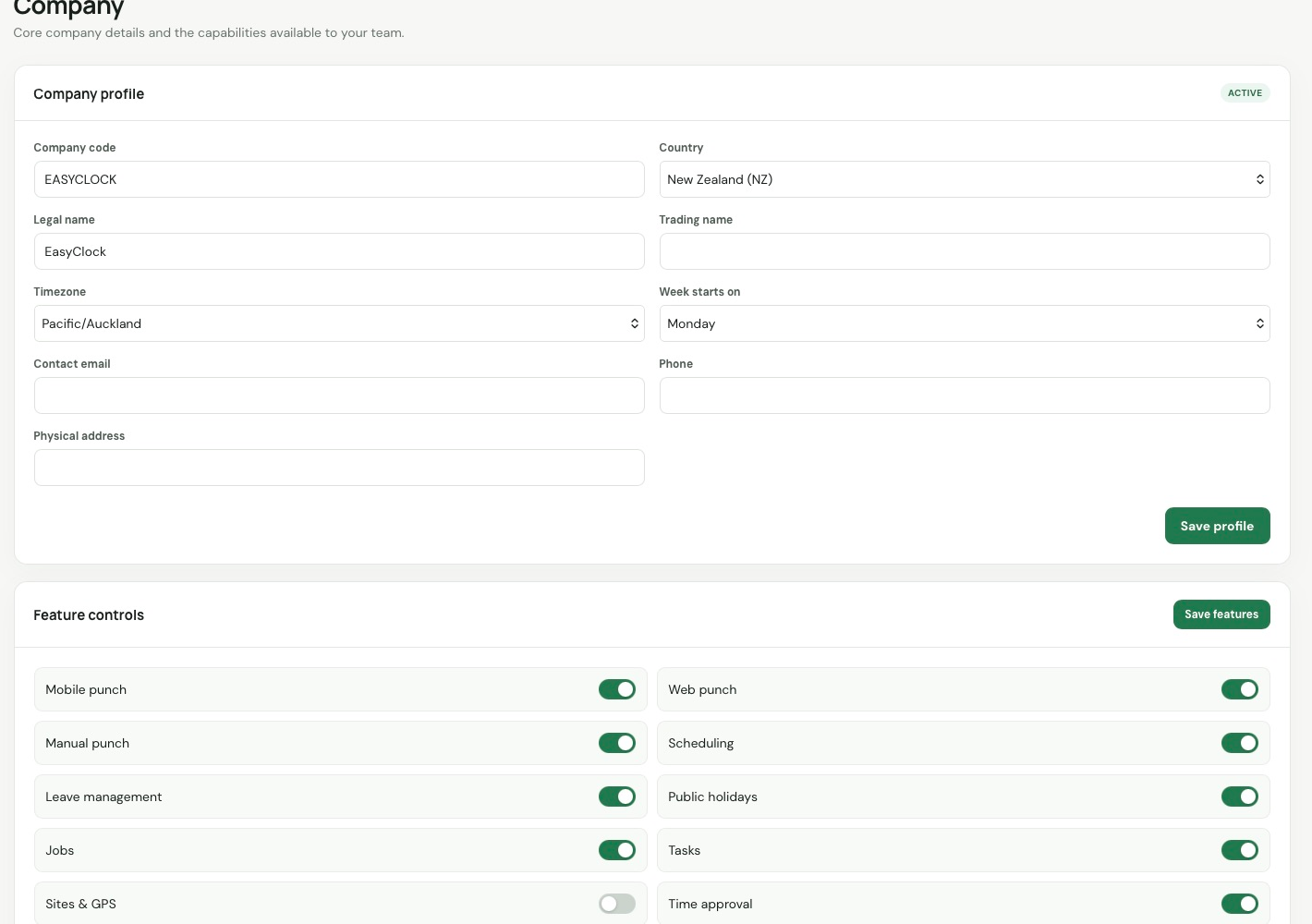
The company screen brings regional details, timezone and workforce feature controls into the administration workflow.
 View full size ↗
Review attendance policy in context
The GPS requirement is maintained in the company’s Mobile attendance & GPS section.
Step by step
Try this workflow.
Confirm the company profile
Review the company code, legal name, country, timezone and start of week.
Review the feature controls
Choose the available punching, planning, leave, work-allocation and administration capabilities.
Work through the policy sections
Review exception generation, mobile attendance and payroll-export settings in their own sections.
Save the relevant section
Use the Save action attached to the section you changed, then verify the intended employee or administrator workflow.
Profile
- Company code, legal and trading name, country, timezone and week start.
- Contact details and business address.
- Confirm timezone and regional settings before attendance begins.
Feature controls
- Web, mobile and manual punch.
- Schedule, leave, public holidays, Jobs, Tasks and Sites.
- Time approval, payroll, employee self service and exception review.
Operational policy
- Enable exception types and thresholds.
- Configure Sites, GPS accuracy and geofence enforcement.
- Choose payroll format, filename pattern, line endings, header row and Pay Type mappings.